
Competitive Event Submission Instructions
To see which events require a Preliminary Round submission at NM TSA State Conference, please review The Events at a Glance spreadsheet as well as the specific event guidelines
In order to login you will need:
Participant ID - Found in your conference registration. NOTE: Your Member ID and Participant ID are two different numbers. Participant ID is for State, Membership ID is for Nationals.
Password - Cinema2027
Submit their projects before the deadline, 11:59pm on February 22, 2026
Each submission only allows for up to 3 files TOTAL, even for events with a preliminary and semifinal submissions. Combine requirements into single upload, one for preliminary, one for semifinals.
Double check your entries are the correct files and sharing links are open and don’t require “request access” to view.
If you experience issues with the Preliminary Round submissions, please refer to the Student Instructions below. If there is still an issue after reviewing these resources, please email nmtsa@nmsu.edu and a staff member will get back to you within 24 hours.
After logging in, you will see your events listed
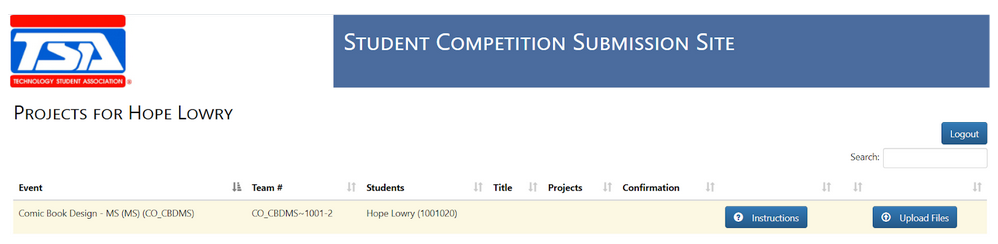
Note: For team events, only Team Captains will be able to upload materials on behalf of their team
Click Instructions to view additional instructions, if any
After viewing the Instructions, click Upload Files
Check, double-check, and triple-check your documents and links to make sure they are in working order
Name your files appropriately
Individual Events: File must be named IndividualID.pdf (e.g. 1001020.pdf)
Team Events: File must be named TeamID.pdf (e.g. 1001-1.pdf)After logging in, you will see your events listed
If you submit a blank or restricted file, judges will not contact you for a new submission and your event will not be judged
If you submit a broken link, judges will not contact you for a corrected link and your event will not be judged
If you submit your files to the wrong event, judges will not contact you for the correct files and your event will not be judged
5. Upload the appropriate documents and links. If you are unsure of what these documents are, refer to the specific event guidelines or review this spreadsheet
6. After uploading, click Finished
7. If you do not see an "Upload” button, the event does not require a submission.
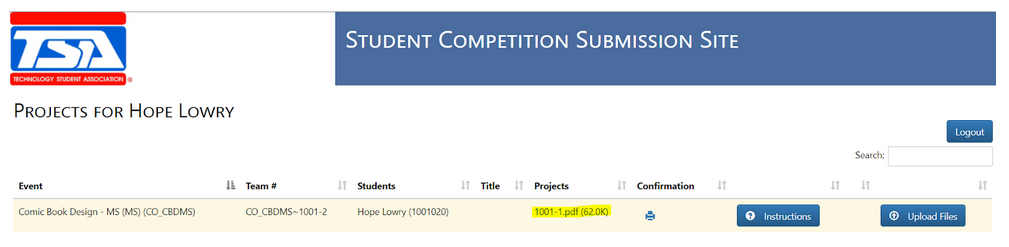
You will notice that the submitted files will be shown under Projects
You can click the printer icon under Confirmation to save/print a confirmation of your submission
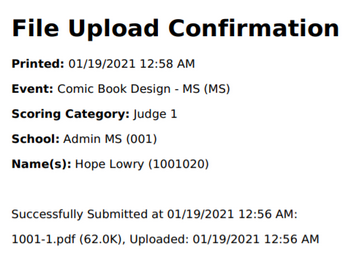
The system will log you out of the submission screen at the event closing time whether or not you have submitted your files, so it is important you click Finished before the deadline to avoid this hard close.